Event details
Everything about an event in one place, once it's created, from its name and link to the chat and the ticket design.
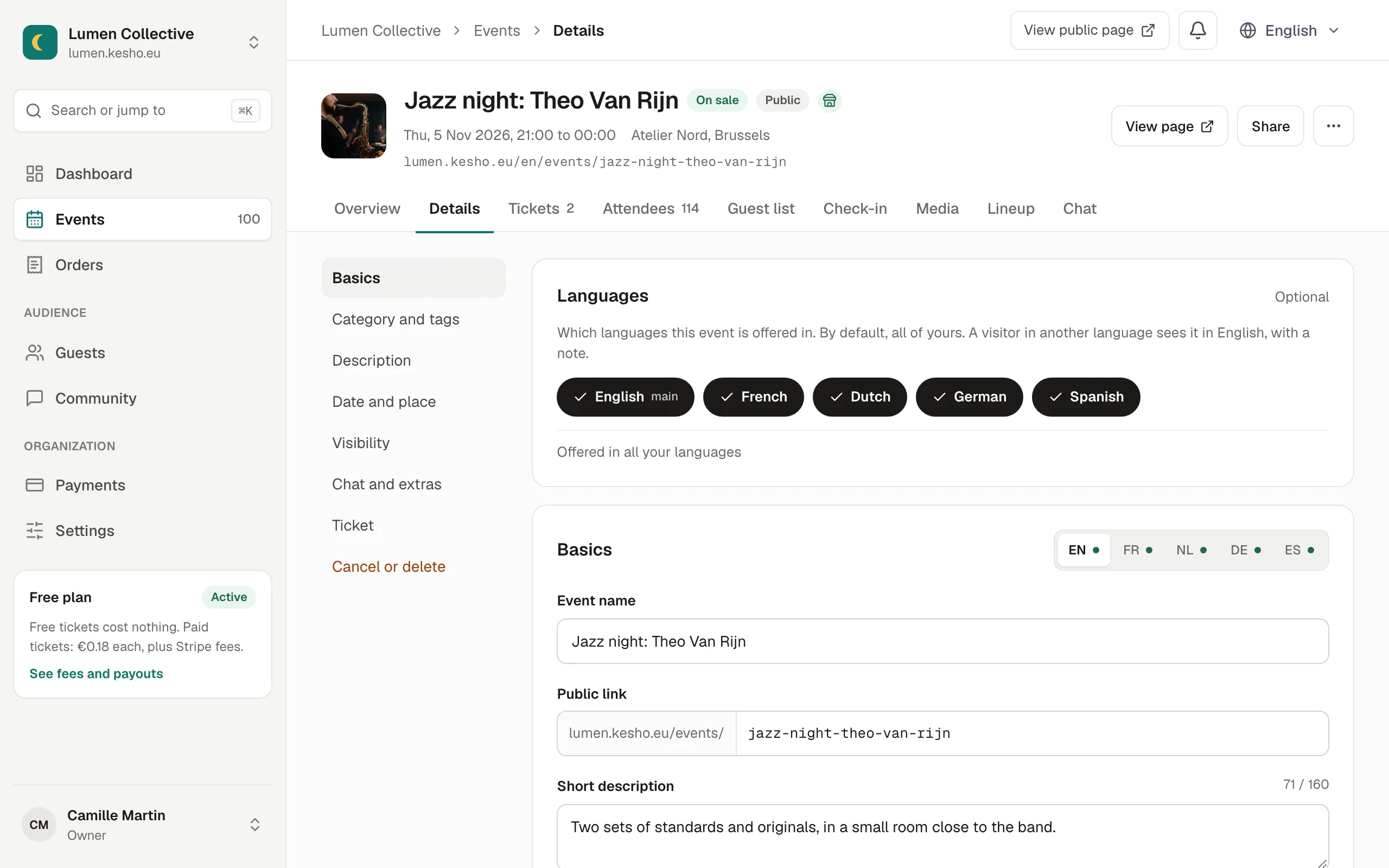
The event’s Details tab holds everything you entered when you created it, and more. The menu on the left jumps to each section; a change is saved with Save, and the sections with unsaved changes are named at the bottom.
The sections
Section titled “The sections”- Basics: the Name, the Public link, the Short description (the sentence under the name, needed to publish) and the full Description, with headings, lists and links. Each in your languages (see Event languages).
- Category and tags: where your event is listed on the marketplace, and up to five tags people can search.
- Date and place: start, end, doors, the venue, and the capacity: the most people who can come, all tickets together.
- Visibility: public or private, the marketplace and search engines (see below).
- Chat and extras: the event chat in the app, Let participants support you, and whether participants can send a ticket to someone else.
- Ticket: the Ticket design and a Note from you printed on the tickets.
- Cancel or delete: back to draft, cancel, or delete a draft.
On the right, Event page checklist shows what the event’s page has and lacks (cover, lineup, translations…), with a link to add each.
Visibility
Section titled “Visibility”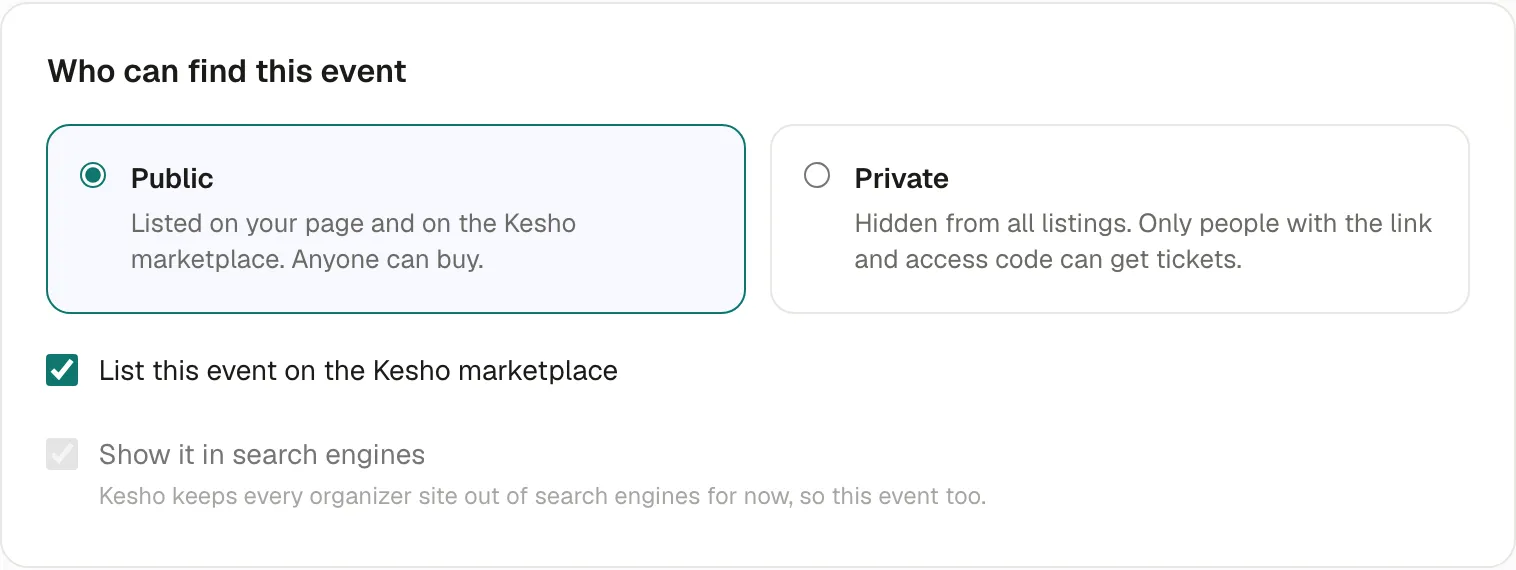
- Public: listed on your page and on the marketplace. Anyone can buy.
- Private: hidden from all listings; only people with the link and the access code can get tickets. See Private events.
- List this event on the Kesho marketplace: untick it to keep a public event on your own page only.
- Show it in search engines: whether Google and others may show the event’s page.
Changing the link
Section titled “Changing the link”Changing the Public link gives the event a new address. Links you already shared keep working: they lead to the new address.
Changing the date or the place
Section titled “Changing the date or the place”When the event already has participants, saving a new date or venue offers to tell them: You changed the date shows how many people hold tickets, with an optional word for them, then Email N people or Don’t tell them. Their tickets stay valid. See Change or cancel an event.
Capacity
Section titled “Capacity”The capacity is the most people for the whole event. Ticket types can’t add up to more places than it: lower a quantity, or raise the capacity. Empty: no limit beyond the tickets.
If something’s wrong
Section titled “If something’s wrong”| What you see | Why | What to do |
|---|---|---|
| Some fields need a look before saving. | A field is empty or invalid; it’s marked in red. | Correct it, then Save. |
| The event’s ticket types already add up to more places than this capacity. | The new capacity is below the ticket types’ quantities. | Lower the ticket types’ quantities first, in Tickets. |
| This event is over, so it can no longer be changed. | The event’s end has passed. | Photos and videos can still be added. For a new edition, … › Duplicate. See After the event. |
| This URL slug or key is already used. | Another of your events has this link. | Choose another one. |
| Show it in search engines can’t be ticked | Kesho keeps every organizer site out of search engines for now. | Nothing to do: the marketplace still lists your public events. |