Publish and share your event
Once published, your event has its own page and is on sale. Share its link, and follow it from the event's overview.
Publish
Section titled “Publish”-
In the last step of the event form, Review, choose Publish event. For an event you saved as a draft, open it from Events, then … › Publish Event.
-
The event opens in your admin. Its header shows that it’s live:

- On sale: participants can get tickets.
- Public or Private: who can find it.
- The shop icon: whether it’s on the marketplace. Hover it to know why it isn’t.
- Under the date, the event’s address:
<your address>.kesho.eu/<language>/events/<event link>.
-
Choose View page to see it as participants do.
Your event page
Section titled “Your event page”The page shows everything you entered: the cover picture, the date and the venue with its map, the description, the tickets, and later the lineup and the photos. Participants choose their tickets and pay on the page itself, without leaving it.
The page is shown in the participant’s language when your organization offers it; the address starts with that language (/en/, /fr/…). The rest of the address stays the same.
On the marketplace
Section titled “On the marketplace”A public event is also listed on the Kesho marketplace, where participants look for events by date, category and place. Usually that’s immediate.
Sometimes the listing waits for a check by the Kesho team, while the event is already live on your own page and on sale:
- the first paid event of a new organization;
- an event whose text contains words that need a check (health claims or ticket resale, for example);
- an event several participants reported.
The event’s page in your admin then says Waiting for marketplace review, and you receive an email once it’s checked. Private events are never on the marketplace. You can keep a public event off the marketplace yourself in Details › Visibility.
Choose Share in the event’s header.
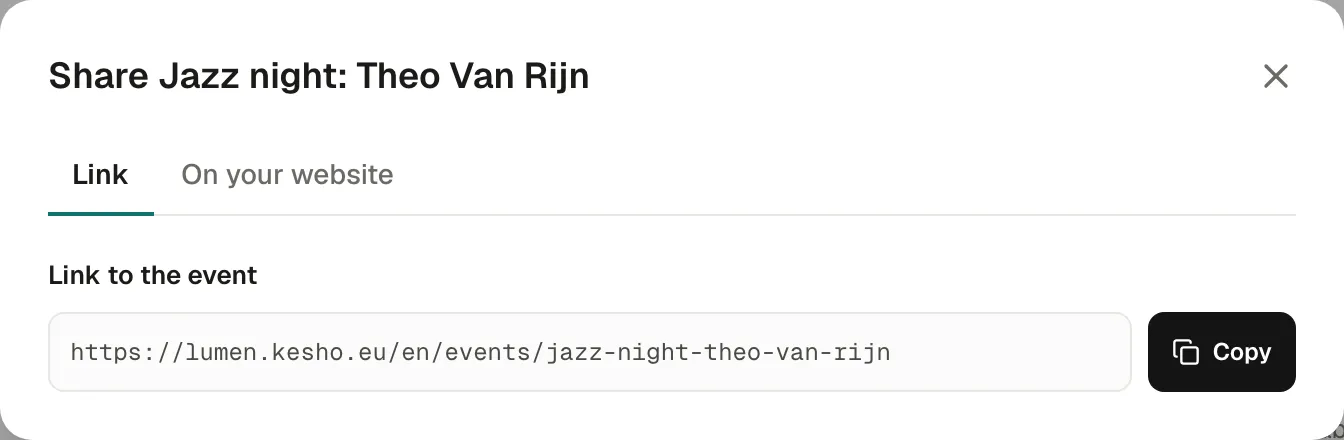
- Link: the event’s address, to Copy into a post, an email or a message. For a private event, the link includes its access code.
- On your website: the code to sell this event’s tickets on your own website, when that’s switched on for your organization. See Sell on your website.
After publishing
Section titled “After publishing”The event’s tabs hold the rest, at your own pace:
- Overview: tickets issued, sales, the sales pace and where participants come from.
- Details: everything from the form, and the event’s languages.
- Tickets: ticket types, sales windows, limits per order.
- Attendees, Guest list, Check-in, Media, Lineup and Chat: each has its own page in these docs.
Changing the date, the time or the venue of a published event can send an email to everyone with a ticket. See Change or cancel an event.
Why it works this way
Section titled “Why it works this way”- Your page is live at once, even when the marketplace listing waits: you can share your link straight away.
- The marketplace check protects participants: the first paid event of a new organizer is when mistakes and abuse are most likely.
If something’s wrong
Section titled “If something’s wrong”| What you see | Why | What to do |
|---|---|---|
| Waiting for marketplace review | The marketplace listing waits for a check. Your page and sales work. | Nothing: you receive an email after the check. Meanwhile, share your own link. |
| Not on the marketplace after review | The Kesho team kept the event off the marketplace. It’s still live on your page, and sales continue. | Read the message in the event’s page. If you disagree, reply to the email, within six months. |
| Unpublished by Kesho | After review, the event was unpublished and sales stopped. Tickets already sold stay valid. | Reply to the email you received to have it published again. |
| The shop icon is grey | The event isn’t on the marketplace. | Hover the icon: it says why (private, kept off in Details › Visibility, waiting for review…). |
| A participant can’t open a private event | The link was shared without its access code. | Share the link from Share, which includes the code. |
| Someone already has an order, a ticket or an invitation for this event, so it can’t go back to draft. | Once someone has a ticket, the event can’t become a draft again. | To stop it, cancel it instead. See Change or cancel an event. |
| Participants can’t buy paid tickets | Stripe isn’t connected yet, or charges are paused. | See Connect Stripe. |