Check people in
Scan tickets at the door, follow arrivals live from the admin, and check someone in by hand.
At the door
Section titled “At the door”On a scanner phone (see Set up door scanners), open Praticable Scan, choose Scan Tickets, and point the camera at the participant’s QR code: on their phone (the Kesho app, the email, Apple or Google Wallet) or on paper.
The screen answers at once:
- Valid Ticket, in green, with the holder’s name and ticket type: let them in.
- Already Checked In, with the time it was first scanned: the ticket was used already.
- A refusal, in red, with the reason. See When a ticket is refused.
A counter shows how many tickets this phone scanned. Sound and vibration can be turned off in the app’s Settings.
Follow it from the admin
Section titled “Follow it from the admin”The event’s Check-in tab shows the door live:
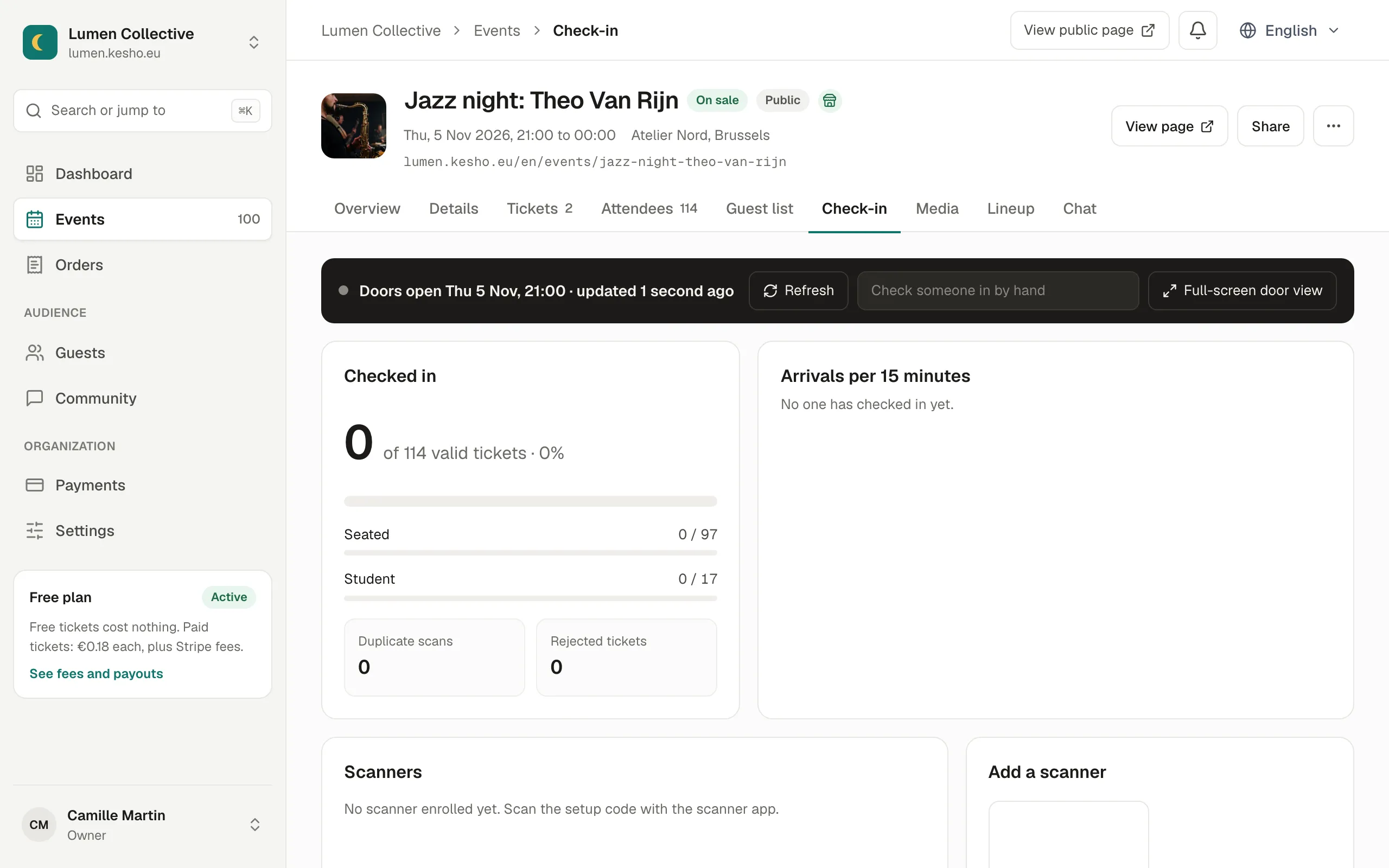
- At the top: when doors open, or Live, and Refresh.
- Checked in: how many of the valid tickets came in, per ticket type.
- Duplicate scans and Rejected tickets: tickets shown twice, and tickets refused.
- Arrivals per 15 minutes, with the busiest moment.
- Scanners: each phone, Online or Offline, its scans, and scans waiting to sync.
- Latest scans: time, gate, holder and result.
Full-screen door view shows the same on a big screen, for the door manager; it updates every 10 seconds, and Esc leaves it.
Check someone in by hand
Section titled “Check someone in by hand”When a ticket can’t be scanned (a broken phone, a forgotten ticket), type the person’s name, email or order number in Check someone in by hand, at the top of the Check-in tab, and choose them. The scan shows as Checked in by your name.
Without signal
Section titled “Without signal”The app keeps working without internet: it checks the ticket’s signature on the phone, lets the person in (Admitted (pending sync)), and sends the scan when it’s back online. The app’s Pending Sync shows what’s waiting, and the Check-in tab shows N scans waiting to sync for that phone.
Why it works this way
Section titled “Why it works this way”- Each ticket carries a signature the app checks without internet, so a fake QR code is refused even offline.
- A ticket works once: the first scan wins, every later scan shows Already Checked In with the time.
If something’s wrong
Section titled “If something’s wrong”| What you see | Why | What to do |
|---|---|---|
| A phone shows Offline | No internet on the phone. | It keeps scanning. Connect it to Wi-Fi or mobile data so scans sync. |
| N scans waiting to sync for a long time | The phone is still offline, or the app is closed. | Open the app online; Pending Sync › Retry now. |
| A phone can’t be removed from an event in the app | Scans are still waiting to sync. | Bring the phone online first: Cannot remove this event. There are N pending check-ins that need to sync first. |
| Not Enrolled in the app | The ticket is for an event this phone wasn’t added to. | Add the phone to that event with a new setup code, or check the ticket’s event. |
| No one has checked in yet though people came in | The phones are offline, or scanning another event. | Check the phones’ status under Scanners. |
| No ticket waiting with that name, email or number. when checking in by hand | The person has no valid ticket left: already checked in, refunded, or under another name. | Search by email or order number in Orders. |