Set up door scanners
Turn any phone into a ticket scanner with the Praticable Scan app, in a minute, for each event.
At the door, your team scans the participants’ tickets with Praticable Scan, a free app for iPhone and Android. Each phone is added to an event with a setup code from your admin; no account or password is needed on the phone.
Before you start
Section titled “Before you start”- One phone per entrance, with its camera working. A spare one helps on busy nights.
- Praticable Scan installed from the App Store or Google Play.
- The event published.
Add a scanner
Section titled “Add a scanner”-
In your admin, open the event, then the Check-in tab.
-
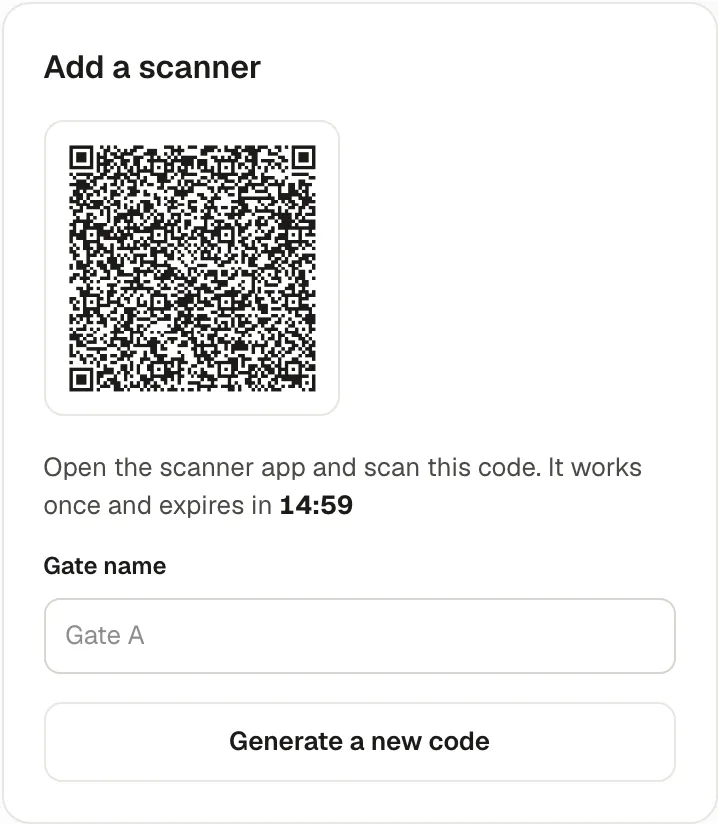
In Add a scanner, give a Gate name if you have several entrances (“Main door”, “VIP”), then Get a setup code.
-
On the phone, open Praticable Scan, choose Add Event, and scan the code on your screen.
-
The app shows the event, the gate and the organizer: choose Validate. The phone is now a scanner for this event.
-
Repeat for each phone: Generate a new code for each one.
The phone appears under Scanners in the Check-in tab, with when it was added, when it was last seen, and whether it’s online.
How long a scanner works
Section titled “How long a scanner works”A scanner works for its event until 24 hours after the event ends, then stops by itself. For your next event, add the phones again with a new code: a phone can be registered for several events at once.
Remove a scanner
Section titled “Remove a scanner”In Scanners, choose Revoke next to the phone. It can no longer check tickets in, at once. Use it for a lost phone, or a volunteer who left.
Why it works this way
Section titled “Why it works this way”- A code instead of a password: volunteers don’t need an account, and the code works once, for 15 minutes, so a photo of it can’t be reused later.
- One registration per event means a phone only checks the tickets of the events you gave it.
If something’s wrong
Section titled “If something’s wrong”These are the messages the app shows when adding an event:
| What the app says | Why | What to do |
|---|---|---|
| This setup code has expired | More than 15 minutes since it was made. | Generate a new code in the Check-in tab. |
| This setup code has already been used | Each code works once: another phone used it. | Make a new code for this phone. |
| Invalid setup code | It’s not a setup code (perhaps a ticket’s QR code), or it was damaged. | Scan the code shown in Add a scanner. |
| This device is already registered for this event. | The phone was added before. | Nothing to do, or remove the event in the app’s Registered Events first to add it again. |
| Network error. Check your connection. | Adding a scanner needs internet, once. | Connect to Wi-Fi or mobile data, then scan again. Checking tickets afterwards works offline. |
| Camera Access Required | The app wasn’t allowed to use the camera. | Choose Grant Access, or allow it in the phone’s settings. |