Connect Stripe
Your own Stripe account receives what participants pay and sends it to your bank. You need it for paid tickets only.
Stripe is the payment service behind Kesho. When you connect your own Stripe account, participants pay you directly: ticket money goes to your Stripe account, then to your bank. Kesho never holds your money.
Before you start
Section titled “Before you start”Connecting takes about 10 minutes. Have these ready:
- your company or association number, if you have one;
- the address where your organization is registered;
- your bank account (IBAN) for the payouts;
- an identity document, in case Stripe needs to check who runs the account.
Only an owner of the organization can connect Stripe.
-
In your admin, open Payments in the menu. The Finish setting up list on your dashboard has the same link: Connect Stripe.
-
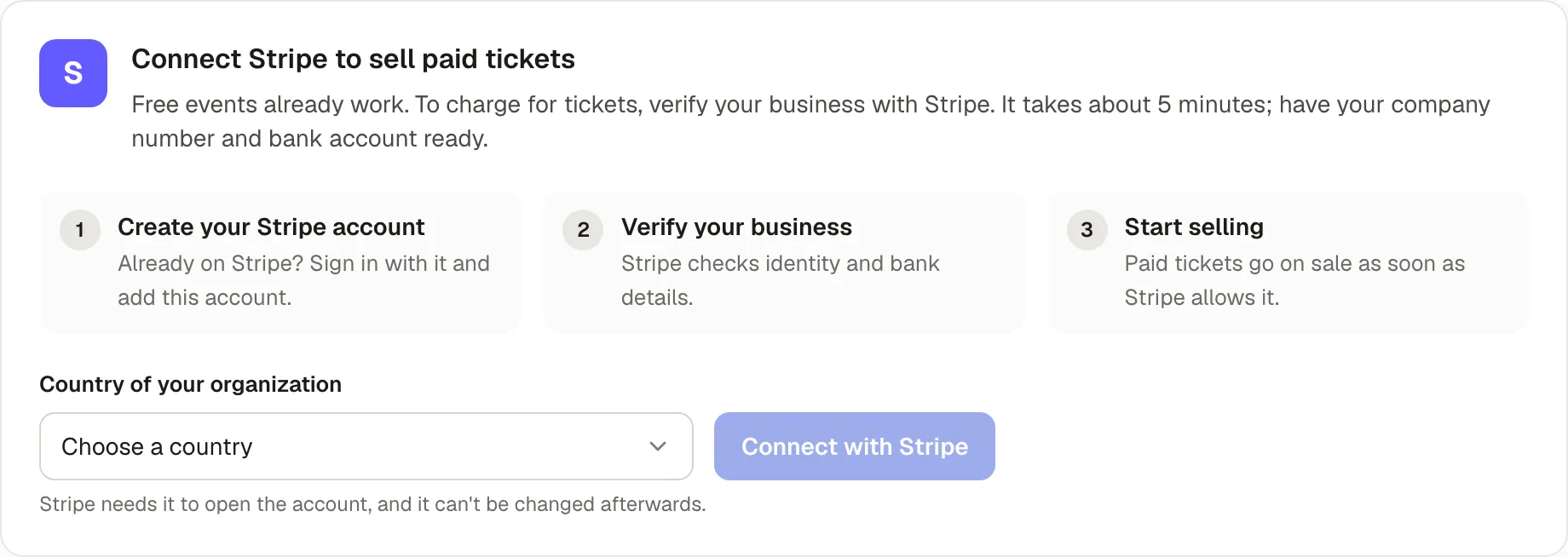
Choose the Country of your organization, where it is registered, then Connect with Stripe.
The country can’t be changed afterwards: Stripe opens the account under that country’s rules.
-
Fill in Set up payments with Stripe. Everything you enter here is passed to Stripe, so on Stripe’s own pages you mostly check it. Details already in Settings › Profile and legal are filled in for you.
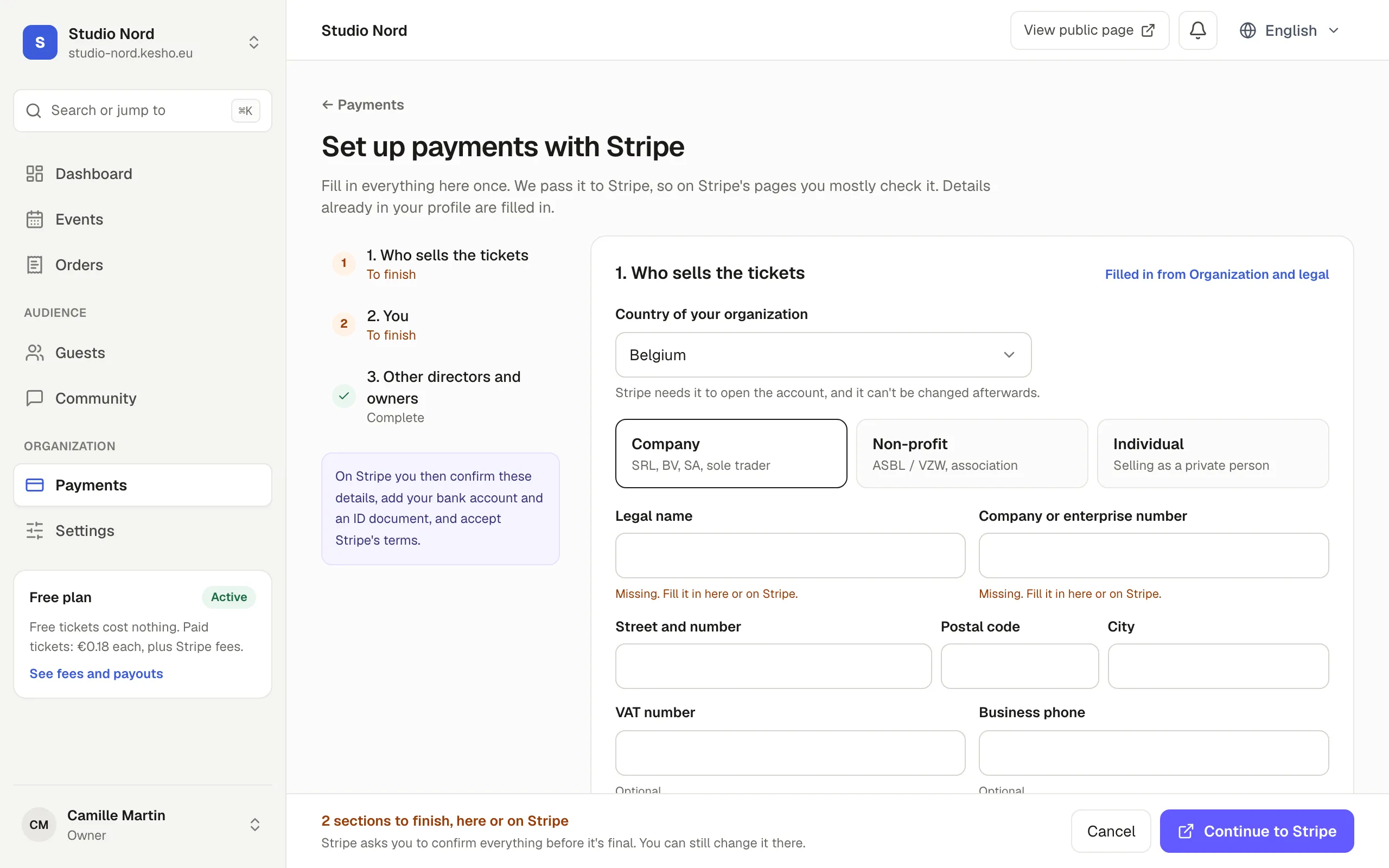
See The setup form, section by section below.
-
Choose Continue to Stripe. Stripe opens. Follow its screens to the end:
- check the details you gave;
- add your bank account (Stripe only lets you add it yourself);
- upload an identity document if Stripe asks for one;
- accept Stripe’s terms.
Already have a Stripe account, for another business? Sign in with it when Stripe offers to: Stripe adds a new account for this organization to your existing login.
-
When you finish, Stripe brings you back to Payments in your admin.
The setup form, section by section
Section titled “The setup form, section by section”1. Who sells the tickets
Section titled “1. Who sells the tickets”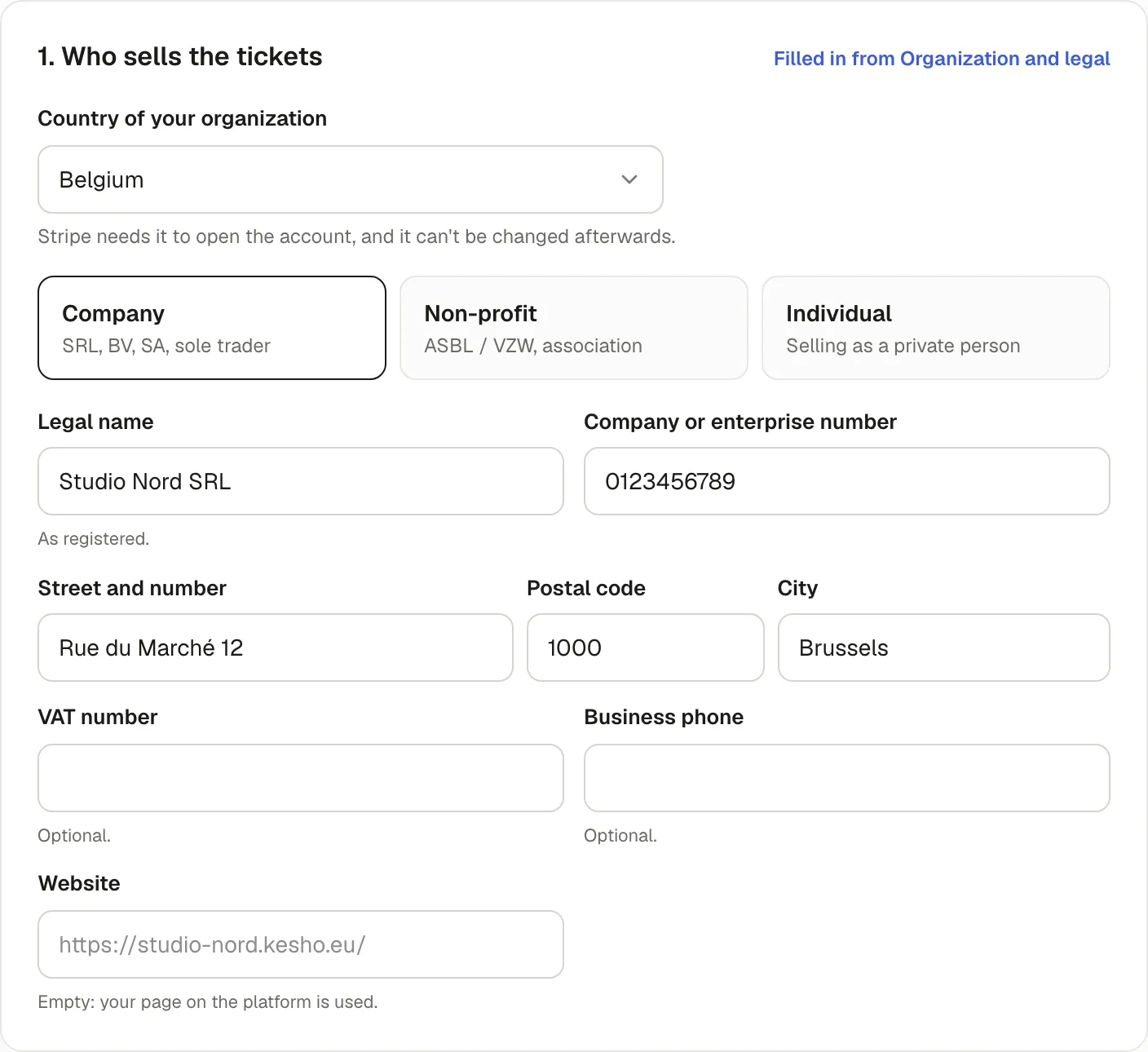
- Type of seller: Company (SRL, BV, SA, or a sole trader), Non-profit (ASBL / VZW, an association) or Individual (you sell as a private person). Choose what you are registered as: Stripe checks it against official registers.
- Legal name and Company or enterprise number: exactly as registered. In Belgium, the enterprise number has 10 digits (
0123456789). - Street and number, Postal code, City: the registered address.
- VAT number and Business phone are optional.
- Website: leave it empty and your page on Kesho is used. Stripe needs a website to show participants who they paid.
As an Individual, this section only asks for your country: Stripe needs your own details, in the next section.
2. You
Section titled “2. You”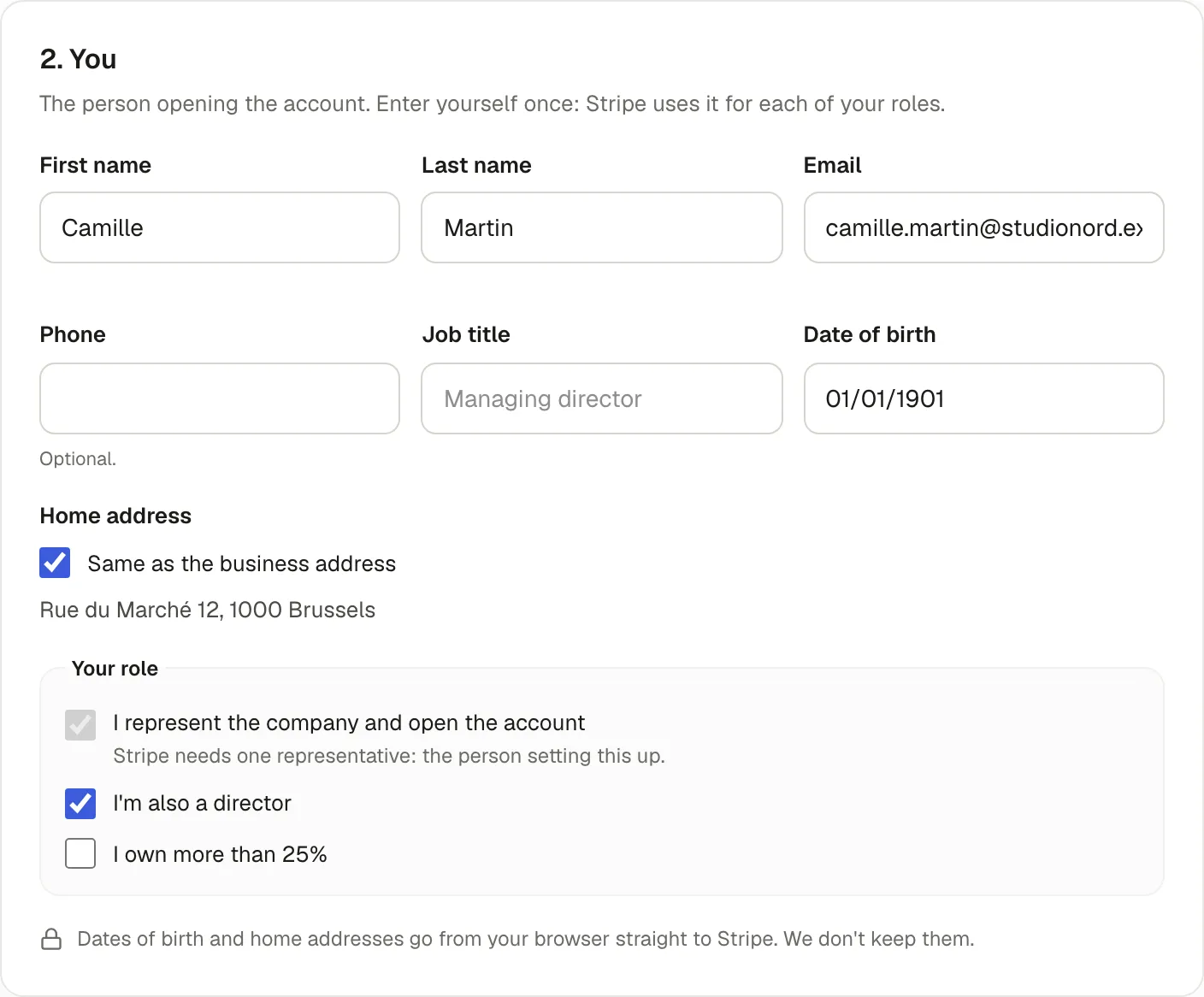
The person opening the account. Enter yourself once; Stripe uses it for each of your roles.
- First name, Last name, Email, and your Date of birth.
- Home address: tick Same as the business address if it is.
- Your role: you represent the company and open the account (Stripe needs one representative: the person setting this up). Tick I’m also a director and I own more than 25% when they’re true.
Dates of birth and home addresses go from your browser straight to Stripe. Kesho doesn’t keep them.
3. Other directors and owners
Section titled “3. Other directors and owners”For a company or a non-profit only. Stripe asks for every director, and for anyone owning more than 25%. Nobody else? Leave it empty.
Before you continue
Section titled “Before you continue”
The bar at the bottom says how many sections are left. You can continue with sections unfinished: Stripe then asks for what’s missing on its own pages.
Tick Save the business details I changed here to Organization and legal to keep the business details you changed in your profile too: your legal notice and receipts use them. People’s details are never saved.
When it’s connected
Section titled “When it’s connected”Payments shows Stripe account connected, with Charges enabled and Payouts enabled. Paid tickets can be sold from now on.
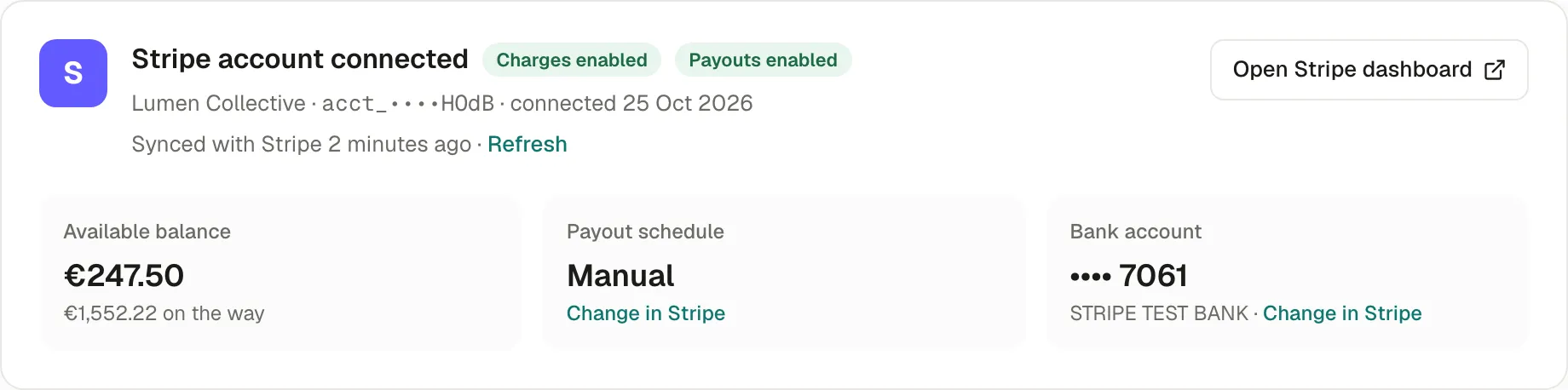
The page also shows your balance, when Stripe pays you out and to which bank account, and your recent payouts. To change the payout schedule or the bank account, choose Change in Stripe: those settings live in your Stripe account. See Fees and payouts.
What participants see
Section titled “What participants see”Participants pay on your event page; they don’t need a Stripe account. Their card statement shows your organization’s short name followed by Kesho’s, for example LUMEN* KESHO, and they receive Stripe’s receipt by email, besides their tickets. See Receipts and invoices.
Why it works this way
Section titled “Why it works this way”- Your own Stripe account means the money is yours from the start: Kesho never holds it, and refunds come out of your balance.
- Stripe checks who you are because the law requires payment services to know who receives money. The more you fill in on the setup form, the less Stripe has to ask.
- The country is fixed because a Stripe account belongs to one country’s rules, currency and bank system.
If something’s wrong
Section titled “If something’s wrong”| What you see | Why | What to do |
|---|---|---|
| Stripe needs a few more details, with a list such as a bank account or acceptance of Stripe’s terms | You left Stripe’s pages before the end, or Stripe asked for something more later. Paid sales are paused until it’s done; free events keep working. | Choose Continue on Stripe and finish what the list names. |
| Charges paused or Payouts paused | Stripe is still checking, or needs something more. Paid sales (or payouts to your bank) wait until it’s done. | Choose Continue on Stripe, or Open Stripe dashboard to see what Stripe asks. |
| Only an owner of the organization can do this. | Connecting Stripe is reserved to owners. | Ask an owner to connect it, or to make you an owner in Settings › Team. |
| Your Stripe account was already started. Continue on Stripe to finish it. | Someone already began connecting this organization. | Choose Continue on Stripe to pick up where it stopped. |
| Stripe didn’t accept the company or VAT number. | The number isn’t in the format Stripe expects for your country. | Check it, or leave it empty and give it on Stripe’s pages. |
| Stripe didn’t accept these details: followed by Stripe’s reason | Stripe refused a value, such as a postal code or a date of birth. | Correct the field Stripe names and continue. |
| Stripe could not be reached. Please try again. | Stripe didn’t answer in time. | Wait a moment and try again. |
| A participant sees Payments are not available at the moment when buying | Stripe isn’t connected yet, or charges are paused. | Finish connecting Stripe. Until then, only free tickets can be booked. |
| You chose the wrong country | The country can’t be changed on an existing Stripe account. | Write to us before going further: the account has to be disconnected and a new one opened. |