Promo codes
Discounts participants type at checkout, for all your events or one, with a limit of uses and an end date if you want.
A promo code takes a percentage or an amount off the tickets of an order. Participants type it on your event page, in Have a promo code?, before paying.
Create a code
Section titled “Create a code”-
Open Settings › Promo codes.
-
In New promo code:
- Code: type one, or Generate a random one. 3 to 50 letters, digits,
-or_. Participants can type it in capitals or not. - Discount: Percentage (for example 15% off) or Fixed amount (for example €10 off).
- Applies to: All events, or one event; for one event, all its tickets or one ticket type.
- Max uses: how many orders can use it. Empty or 0: no limit.
- Valid until: the last day it works. Empty: no end.
- Code: type one, or Generate a random one. 3 to 50 letters, digits,
-
Choose Create code. It works at once.
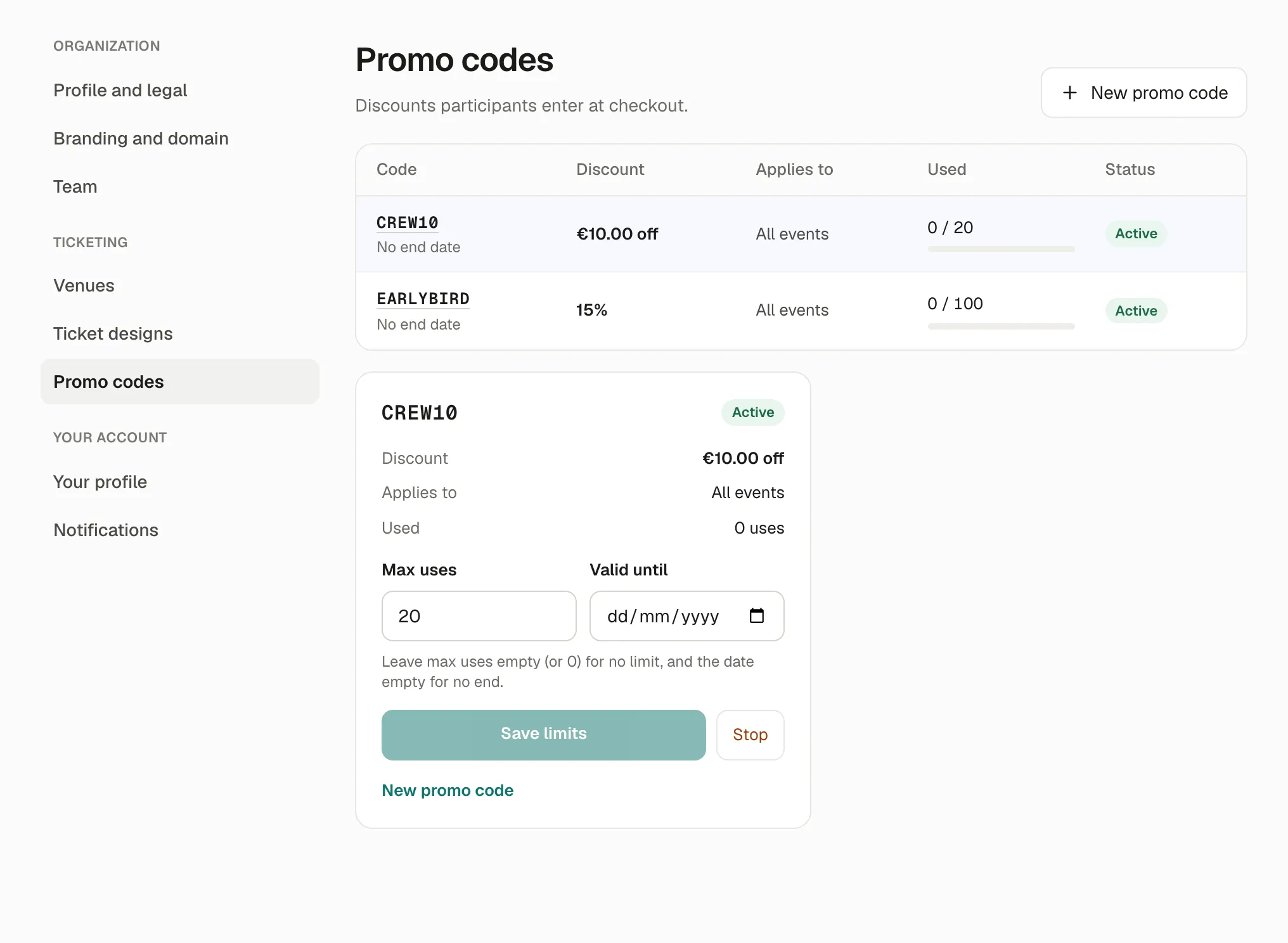
The list shows each code’s discount, where it applies, how many times it was used, and its status: Active, Not started, Used up, Expired or Stopped. The line at the top says how much your codes saved participants this month.
Change or stop a code
Section titled “Change or stop a code”Choose a code in the list:
- change its Max uses or Valid until, then Save limits;
- Stop it: participants can’t use it any more, and orders already made keep their discount.
How a use is counted
Section titled “How a use is counted”A use counts once the order is paid (or confirmed, for free tickets). While a participant is paying, the use is held for them: the list shows it as in a checkout. If they don’t finish, the use comes back.
What participants see
Section titled “What participants see”At checkout, Have a promo code? opens a field. Once the code is accepted, the discount shows in the total. A fixed amount can’t bring the order below zero.
Why it works this way
Section titled “Why it works this way”- Uses are held during checkout so a code limited to 20 uses can’t be used 25 times by people paying at the same moment.
- Stopping keeps past discounts because those participants already paid the lower price.
If something’s wrong
Section titled “If something’s wrong”These are the messages participants see at checkout:
| What they see | Why | What to do |
|---|---|---|
| Promo code not found. | A typo, or the code belongs to another organization. | Check the spelling in Settings › Promo codes. |
| This promo code does not apply to the selected items. | The code is for another event or another ticket type. | Change Applies to, or tell participants which tickets it’s for. |
| This promo code has expired. | Valid until has passed. | Change the date and Save limits, if you want it to work again. |
| This promo code is no longer available. | It was used up, stopped, or hasn’t started yet. | Raise Max uses, or make a new code. |
And in your admin:
| What you see | Why | What to do |
|---|---|---|
| You already have a code with these letters. | Each code is unique in your organization, used up or stopped ones included. | Choose other letters. |
| 3 to 50 letters, digits, - or _. shown in red | The code has spaces or other characters. | Remove them. |