Ticket designs
How the PDF ticket looks: its format, colour, logo and picture, and what's printed on it.
Every ticket is sent as a PDF, ready to print or show on a phone, and as a pass for Apple Wallet and Google Wallet. A ticket design sets the PDF’s look. Without one, tickets use the built-in design.
Make a design
Section titled “Make a design”-
Open Settings › Ticket designs, then New design.
-
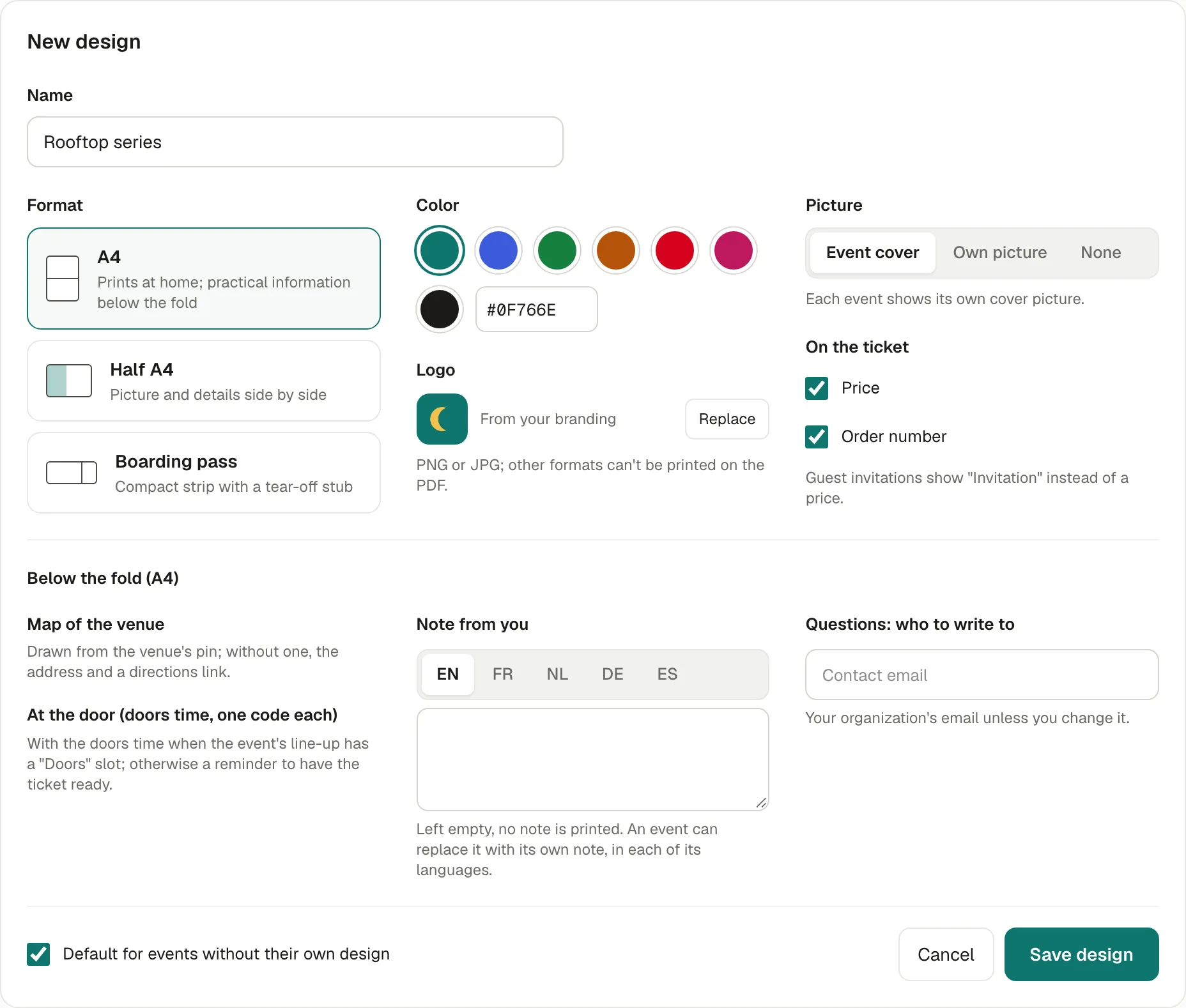
Give it a Name (for example “Rooftop series”) and choose its Format:
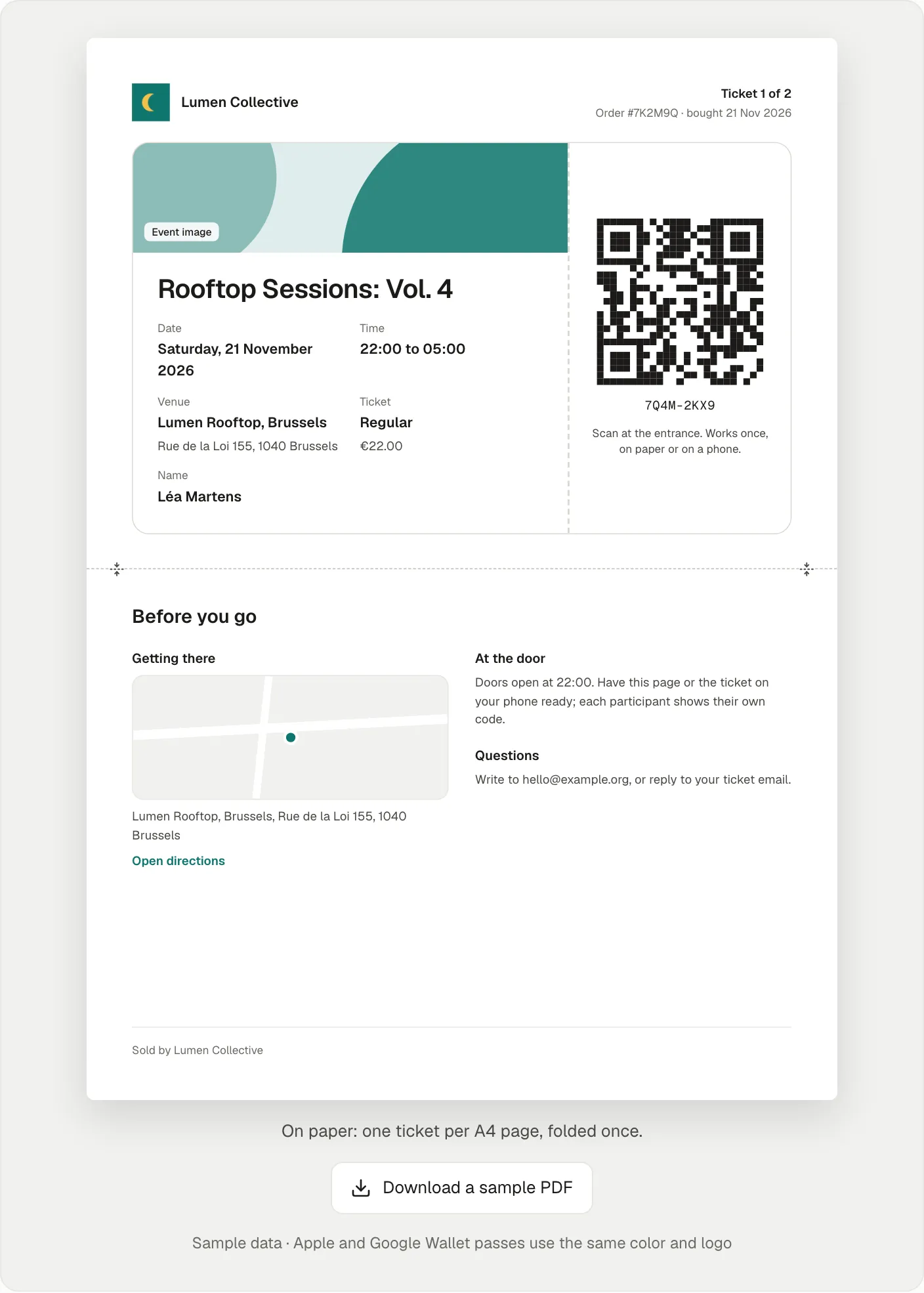
- A4: prints at home, one ticket per page, folded once; practical information below the fold.
- Half A4: picture and details side by side; two tickets per A4 sheet, with cut lines.
- Boarding pass: a compact strip with a tear-off stub; three per A4 sheet. It has no picture.
-
Choose the Color, the Logo (your branding’s, or this design’s own, in PNG or JPG) and the Picture: the Event cover (each event shows its own), an Own picture (the same on every event) or None (shapes in the design’s colour).
-
Under On the ticket, choose what’s printed: the Price, the Order number, and for A4, below the fold, the Map of the venue, At the door (the doors time), a Note from you, and Questions: who to write to with a contact email.
-
Preview shows it with sample data. Download a sample PDF makes a real one, with one of your events.
-
Save design. Tick Default for events without their own design to use it for all your events.
Use a design for an event
Section titled “Use a design for an event”In the event’s Details, choose its Ticket design. Events without one use your default design.
A design applies to the tickets sent from then on. Tickets already sent keep their look; … › Regenerate Tickets sends new ones, but invalidates the old ones (see below).
What participants see
Section titled “What participants see”- The PDF attached to their confirmation email, and in their account and the Kesho app.
- Apple Wallet and Google Wallet passes use the same colour and logo.
- Guest invitations show “Invitation” instead of a price.
If something’s wrong
Section titled “If something’s wrong”| What you see | Why | What to do |
|---|---|---|
| Create an event first: the sample ticket uses its date, venue and ticket type. | The sample PDF needs one of your events. | Create an event, even a draft. |
| The logo doesn’t appear on the PDF | It’s an SVG or another format the PDF can’t print. | Upload it in PNG or JPG. |
| No map on the ticket | The venue has no pin on the map. | In Settings › Venues, pick the venue’s address from the suggestions. The ticket then shows the map; meanwhile it shows the address and a directions link. |
| Participants still have the old design | Tickets already sent keep their look. | Leave them: they work the same. Regenerating would invalidate them and send new ones to everyone. |
| You deleted a design events used | They switch to the default design. | Choose another design in their Details if needed. |